

Chapter 4: Animation and Games
From playing games to programming your own — with Scratch blocks, sprites and a storyboard.
Original notes — ready CBSE (NCERT, English Medium) • Class 6 • Vocational Education • Book: Kaushal Bodh
Animation and Games — EG's own notes, in simple words
Book: Kaushal Bodh (CBSE, Class 6) | Chapter 4 | Medium: English
Section: Part 2 – Work with Machines and Materials
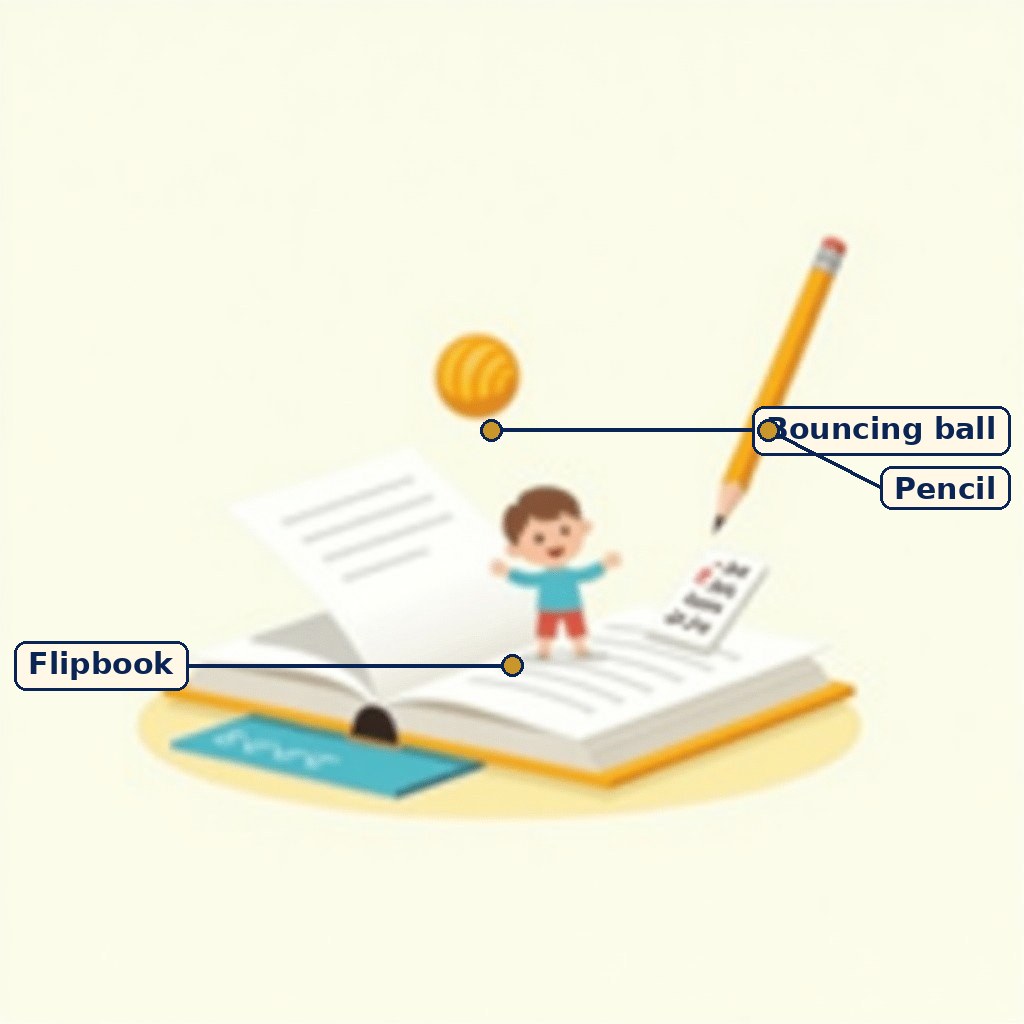
Diagram (labels are printed on the image): A flipbook showing a bouncing ball across its pages. A general teaching picture about animation; the pages show a ball, not readable words.
Children playing a game they designed. A general picture about games and rules; no real game is pictured.
What the chapter is about
You may have played games on a smartphone or computer, with figures that move and respond to your inputs, and seen animation films and animojis (animated emojis). People called programmers use something called coding to make them. This project helps you create your own online games and animations. Designing games and animations blends creativity and technology: it begins with an idea, which designers develop and refine before work starts, with artists creating visual elements and programmers doing the coding.
Just as we use different languages to communicate, programmers use programming languages to communicate with devices like smartphones, computers, tablets, smartwatches, satellites and driverless cars. When you click a button and the device responds, your click is translated into instructions in a language the machine understands. A series of instructions to computers or smartphones is called a programme. There are many such languages — Javascript, Python and C++ among them — and visual programming languages, in which a series of programming instructions are clubbed into blocks that you combine into sets of instructions. Scratch is easy to use and is called a visual programming language because you move around blocks instead of writing complicated programmes in languages that take time to learn. These blocks let you 'write' programmes to create animated figures, design games, and create your own wallpaper.
What you will be able to do
- Create a simple Scratch project with block programming.
- Design games and animations using Scratch.
- Learn how we communicate with devices; learn to use Scratch; make your own animation and game; design, try out and improve a model; and make an online game of an offline game.
What you will need
- A computer or laptop with Internet connection, with Scratch downloaded on it.
- A notebook, pen or pencil, loose papers, markers and cardboards.
Before you start: you should be able to perform basic computer functions — using the mouse and keyboard, checking Internet connectivity, browsing or searching on a browser, and downloading and installing software.
Discuss safety precautions for accessing the Internet with your teacher and peers, make a list of 'to do' and 'not to do', and follow it while working; if in doubt, ask your teacher. Using computers for games or searching the Internet is fun, but anything done in excess is not good, and excess screen time is not good for your mental and physical health. Playing outside and including physical sports are good for your body and mind, so limit your screen time as advised by your teacher and/or family members.
Thinking about games first
Activity 1 — Game design. We play outdoor games (for example cricket, Blind Man's Buff) and indoor games (for example chess, Ludo, card games). Think: why do we play games; which is your favourite game; what do you like in it; how many members can play it; what rules must be followed; and is there anything else interesting about it?
Activity 2 — Model your favourite game. Make a model of your favourite game using craft materials: for Ludo or Snakes and Ladder, use cardboard and buttons to make the board; for cricket, make a model of the cricket pitch; for Blind Man's Buff, make a model of the field or playground, marking boundaries clearly. Making a model helps you think about the details of a game.
Activity 3 — Trying out online games. Play a few games on a smartphone, computer or laptop, trying different kinds, and answer: do all games have rules; did they all have characters, such as cartoons; did the characters interact with each other in all games; was there a colour background in all games; was there music in the games; and did you find any game interesting and challenging — if yes, why, and if not, how could it be made more interesting and challenging?
Activity 4 — Preparing to make your own game with animation. You have identified the rules, players, interaction between players and challenges in online and offline games. Online games, and a few offline games, include music and a background that make them attractive and interesting. Now look for interesting online games and animations created using Scratch — for example, match-the-pair games — and study how they work.
Building in Scratch: sprites, backdrops and blocks
Activity 5 — Build characters, objects and a backdrop of your game. Try things out in Scratch and keep a record: were you able to select and import a sprite; did you use the in-built sprite, an image from the Internet, a photo you had taken, or both? A sprite is the character or object you animate; the backdrop is the background scene behind it.
Activity 6 — Programming your characters and objects. Animate your sprite by selecting it and dragging code blocks onto your window so it follows your instructions. Keep a record: were you able to use 'Motion' and 'Looks' blocks to animate your sprite; were you able to animate it using 'Control' and 'Events' blocks; were you able to include music; were you able to select multiple sprites; and were you able to change their costume?
Activity 7 — Create an animated birthday card for your friend. Make an animated birthday card using your friend's name and/or image — the letters themselves can be animated. Keep a record: were you able to import and use your friend's picture as a sprite; were you able to use a combination of 'Motion', 'Looks', 'Control' and 'Events' blocks to create an animated card; and could you add music and change costumes?
Designing, coding, trying out and sharing your game
Activity 8 — Designing your game: the storyboard. Plan the details of your game first. This is called making a storyboard: it helps in planning what will be shown on the screen during a game or animation, and it is like a roadmap. Make it on paper or on the computer, sketching your characters, detailing how they will respond to commands, and showing the sequence of actions — everything in your head can go into it.
Activity 9 — Coding your game. With your teacher's or another person's help, write the code for your designed game by creating characters and scenes, animating characters, using dialogue and text, using event blocks to trigger different events in the story, and using sound blocks to add background music. The book's example: in one piece of code, the Cat will move 10 steps ahead and say 'Hello' once you press start. First write a script for the game you designed.
Activity 10 — Trying it out. Check whether your game works: publish it by clicking the 'Share' button in Scratch, request other group members to play it, and ask whether there are any issues or 'bugs' that need removing for smooth working.
Activity 11 — Sharing your game. Imagine someone who has not worked with you playing the game: you must introduce it and give basic instructions, by making an audio or video clip, or by creating a document. Explain the aim, the controls, the rules and how to win or finish, in simple words.
The order matters: idea → model or storyboard → sprites and backdrop → blocks → test with friends → fix bugs → share with instructions. A game that is planned on paper first is far easier to code than one invented block by block.
Key Terms
- Animation — Moving figures (humans, animals and objects) created on a screen, as in animation films and animojis (animated emojis).
- Programmer — A person who writes programmes (coding) for devices.
- Programme — A series of instructions to a computer or smartphone.
- Programming language — A language for communicating with devices, for example Javascript, Python, C++ — or a visual programming language.
- Visual programming language — A language in which instructions are clubbed into blocks that you move and combine, instead of writing complicated code.
- Scratch — An easy-to-use visual programming language for animations and games.
- Sprite — A character or object in Scratch that you can animate.
- Backdrop — The background scene of a Scratch project.
- Blocks — Drag-and-drop instruction pieces in Scratch, including Motion, Looks, Control, Events and sound blocks; a costume is how a sprite looks.
- Storyboard — A plan, like a roadmap, of what will be shown on screen, with characters, responses to commands and the sequence of actions.
- Bug — An issue in a game or programme that must be removed for smooth working.
- Coding is communicating with devices: a programme is a series of instructions the machine understands.
- Scratch is visual: you drag blocks (Motion, Looks, Control, Events, sound) instead of writing complicated code.
- Every game needs rules, players, characters (sprites), a backdrop, music, and a challenge.
- Plan with a storyboard, code from a script, test with friends, fix the bugs, then share with clear instructions.
- Limit screen time: play outside and include physical sports for your body and mind.
Practice set — try it yourself
- What is animation?
Hint: Think about fast-changing pictures. - What is a frame?
Hint: Think one picture in a sequence. - What does a good game need?
Hint: Think rules, goal, fairness. - Why test a game with friends?
Hint: Think about finding confusion. - Make a 6-page flipbook of a bouncing ball.
Hint: Change the ball a little each page.
Questions with Answers
- What is animation?
Animation is making still pictures seem to move by showing them very fast, one after another, so our eyes see movement. - What is a frame?
A frame is one single picture in an animation. Each frame is a little different from the one before it. - What is a flipbook?
A flipbook is a book of drawings that, when flipped fast, shows movement — for example a ball seeming to bounce. - What does a good game need?
A player, a challenge, clear rules, a goal, and fairness, so every player has a fair chance. - Why test a game with friends?
Because friends find what is confusing or unfair, and the maker can fix those problems before sharing the game.
Questions with Answers — extension (NCERT activities and Think and Answer types)
- What is coding, and which programming languages does the book name?
Coding is using a programming language to communicate with devices such as smartphones, computers, tablets, smartwatches, satellites and driverless cars. The book names Javascript, Python and C++, besides visual programming languages such as Scratch. - How do you check an online game you tried out?
Ask: do all games have rules; did they all have characters; did the characters interact in all games; was there a colour background in all games; was there music; and was any game interesting and challenging — and if not, how could it be made more interesting and challenging? - What do you record while building sprites and backdrops?
Whether you could select and import a sprite, and whether you used the in-built sprite, an Internet image, a photo you took, or both. - Which blocks animate a sprite, and what else can you change?
'Motion' and 'Looks' blocks animate a sprite, with 'Control' and 'Events' blocks controlling when things happen; you can also add music, select multiple sprites, and change their costumes. - What goes into coding a game from a storyboard?
Creating characters and scenes, animating characters, using dialogue and text, using event blocks to trigger events in the story, and using sound blocks for background music — for example, code in which the Cat moves 10 steps ahead and says 'Hello' when you press start. - What is a bug, and how do you find one?
A bug is an issue that stops a game working smoothly. You find bugs by publishing the game with the 'Share' button and asking other group members to play it and report problems. - Compare online and offline games: give three things you like about each.
Online games (answers will vary): moving characters, music and colourful backdrops, and play against the computer or others. Offline games (answers will vary): playing face to face with friends, physical activity outdoors, and simple materials such as a board, cards or a ball. Your three points must come from games you actually played. - Why must screen time be limited?
Because anything done in excess is not good, and excess screen time is not good for mental and physical health; playing outside and physical sports are good for body and mind, so screen time should stay within what your teacher and family advise. - Which jobs are related to this project?
Programmer, software developer, game developer and 3D animator.
How to use this page: Read the summary, say the Key Terms in your own words, then try the practice set without looking. Check your answers against Questions with Answers, and ask your teacher or parent to check your work.